Operations
Daily operations
From checking the numbers to managing work and receiving alerts, run your media's day-to-day in a single admin.
Get the picture each morning from the dashboard and the daily SEO report, move work forward for people and AI agents on the task board, and follow conversions in the log and in Slack as they happen. Autorial's admin is built so that this daily routine flows as one.
Prerequisites
- Google BigQuery (GA4 export)Dashboard KPIs and conversion events (conversion records also kept in a BigQuery table)
- GA4 Data APIPage views on the dashboard
- Google Search ConsoleSearch figures on the dashboard
- Slack(Incoming Webhook)Conversion alerts, daily summaries and report delivery
- Chatwork (API token)To send daily reports to Chatwork
- An MCP-capable AI agent (e.g. Claude Code)To hand tasks to AI agents
Google services (BigQuery, GA4, Search Console) connect together through a single service account with read access, and the connection details are registered in the admin's analytics settings.
01Dashboard
This month's results and month-end outlook at a glance
The first screen after you sign in lines up monthly KPIs such as revenue, conversions and cancellation rate, each with a six-month trend. This month's results are compared with last month step by step, from page views to confirmed outcomes, alongside a month-end forecast. On every screen, the sidebar shows visitors in the last 30 minutes, the latest events and conversions over the last 14 days.
- Monthly KPIs with a six-month trend and month-over-month change
- This month's results compared with last month at each step, from page views to outcomes
- The month-end forecast shown next to last month's actuals
- Open the latest daily SEO reports straight from the dashboard
02Daily SEO report
A daily SEO report each morning tells you what to do today
The SEO report is generated automatically every morning and arrives in the admin as a timeline. Verification results, signals and today's actions come together in one report, so reading it first thing tells you what to do today. The calendar and table of contents on the right take you to any past report.
- Verification results, signals and today's actions in one report
- The calendar shows which days have reports, with links to the previous and next day
- Open past reports from the table of contents by date
- Reports can be delivered as-is to Slack or Chatwork
03Task board
Work by people and AI agents on a single board
Manage all of your media's work — article improvements, development, SEO and operations — as tasks on a kanban board. Cards sit in columns such as IceBox, Todo, In progress and Implemented, and dragging a card changes its status. AI agents can also create and update tasks through MCP, so work by people and agents comes together on the same board.
- Filter by version and category; narrow down by priority or keyword
- Each card shows its priority, version and category
- Click a card to open its details alongside the board
- Archived tasks stay available behind a display toggle
04Task details
Keep articles, PRs and next actions together in each task
In a task's details, switch its status, priority, version, category and assignee, and record the related articles and creatives, the working branch and the GitHub PR. Click the body to write in Markdown right there; it saves automatically. Leave a “Next action” and a “Goal” in the body, and whoever picks the task up next can continue where it left off.
- Link articles and creatives by ID
- Record the working branch and the GitHub PR URL
- Attach images and files by drag-and-drop or paste
- The person or AI agent who created the task is kept as its author
05Version details
Review progress and releases version by version
Tasks move forward grouped into versions. A version's details show, as cards, the share of tasks completed with a breakdown by status, the days since it started, and how many releases it has had. The release history below lets you trace later what went to production and when.
- Set start and release/completion dates, with days elapsed shown
- Record the current state, next steps and environment in “Handover notes”
- Each release's time, commit, file count and duration
- Jump to the board filtered by this version, or add a task to it
06Review requests
Never miss a human check after a rewrite
When an AI agent or a team member rewrites an article, the points that need a human eye are left here as a request. Each request shows what to check, who asked and the related task, with direct links to the article with comments, the preview and the editor. Once the review is done or the article is deployed to production, the request drops off the list automatically.
- Filter by open, reviewed, cleared by deploy or withdrawn
- See the body diff for each request
- The related task and its status are shown
- Why and when a request was cleared stays on record
07Conversion events
Follow each day's conversions one by one
A log of conversions such as bookings, in the order they happened. The top shows that day's counts of conversions, confirmed outcomes and cancellations, and the previous / next / today buttons switch the date. Each entry shows the time, the region and the page it came through, and entries you haven't seen yet are marked NEW.
- Daily counts of conversions, confirmed outcomes and cancellations
- An unread count, with new entries marked NEW
- Links to the month's conversion records and to conversion analysis
08Slack notifications
Get new conversions and a morning summary in Slack
Send real-time alerts when a conversion happens, and a daily summary of the previous day's results, to Slack. Webhooks can be split between conversions and SEO reports / operational notices; if the latter isn't set, those notices go to the conversion webhook. The preview on the right shows exactly what will arrive before you save.
- Turn real-time alerts and the daily summary on or off separately
- The daily summary arrives each morning with yesterday's results and top articles
- Real-time alerts include the article and the CTA position
- Set the bot name and icon emoji, and check with a test message
* Screens use sample data, with some details such as article titles and keywords blurred. The admin is shown in Japanese. Click to enlarge.
Explore other features
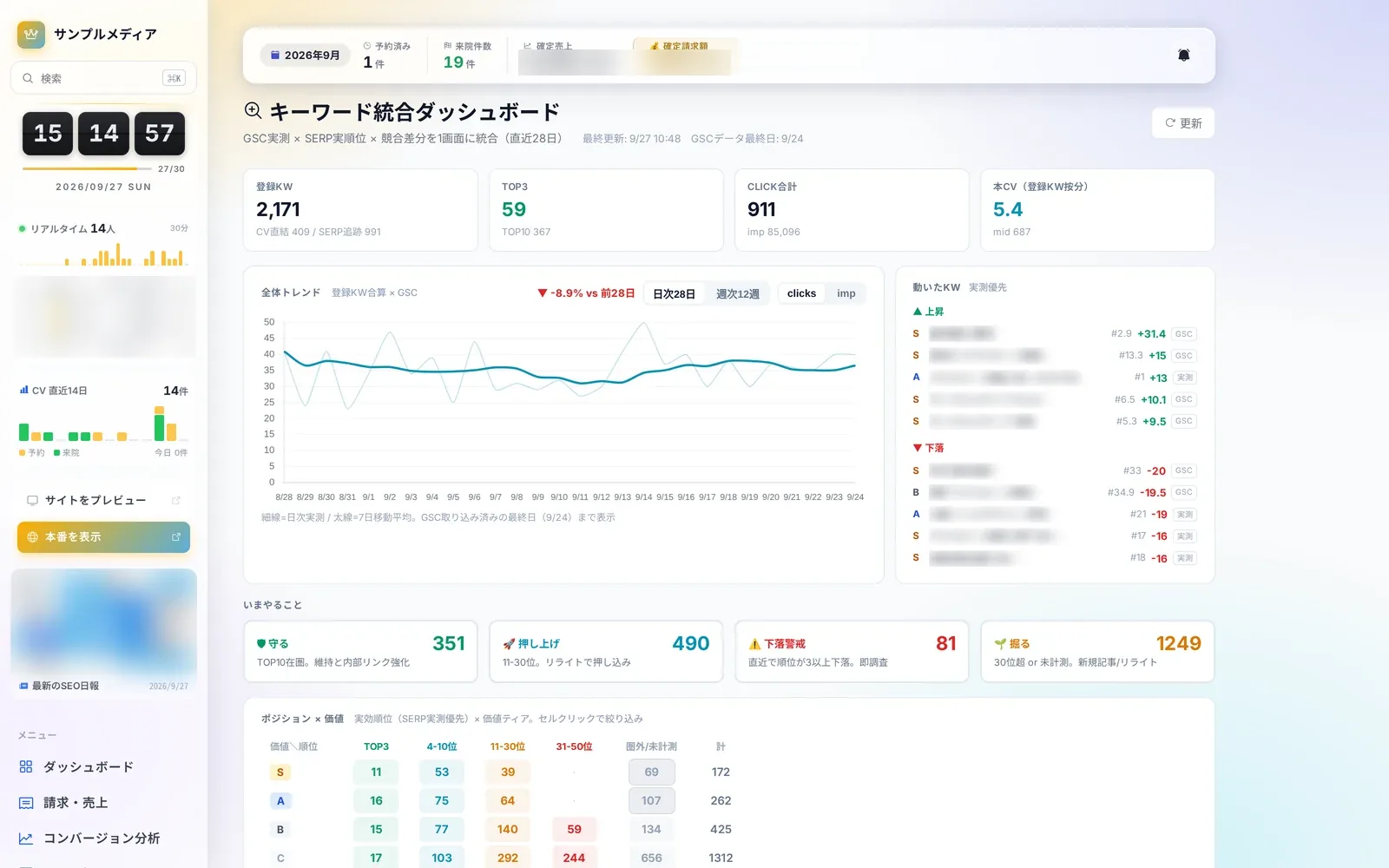 SEO4 screensSEO and search rankingsLearn more
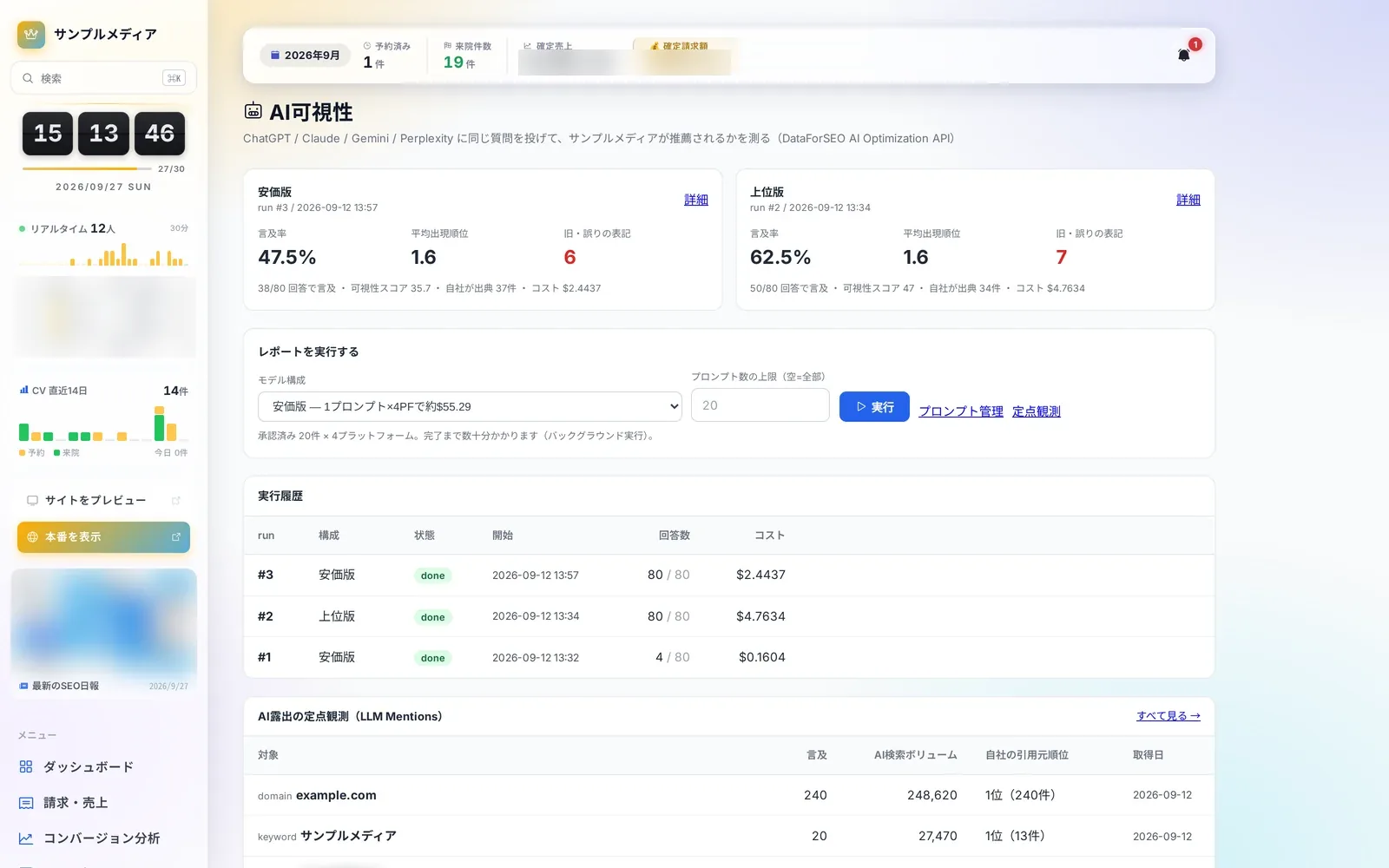 AI Visibility4 screensAI visibilityLearn more
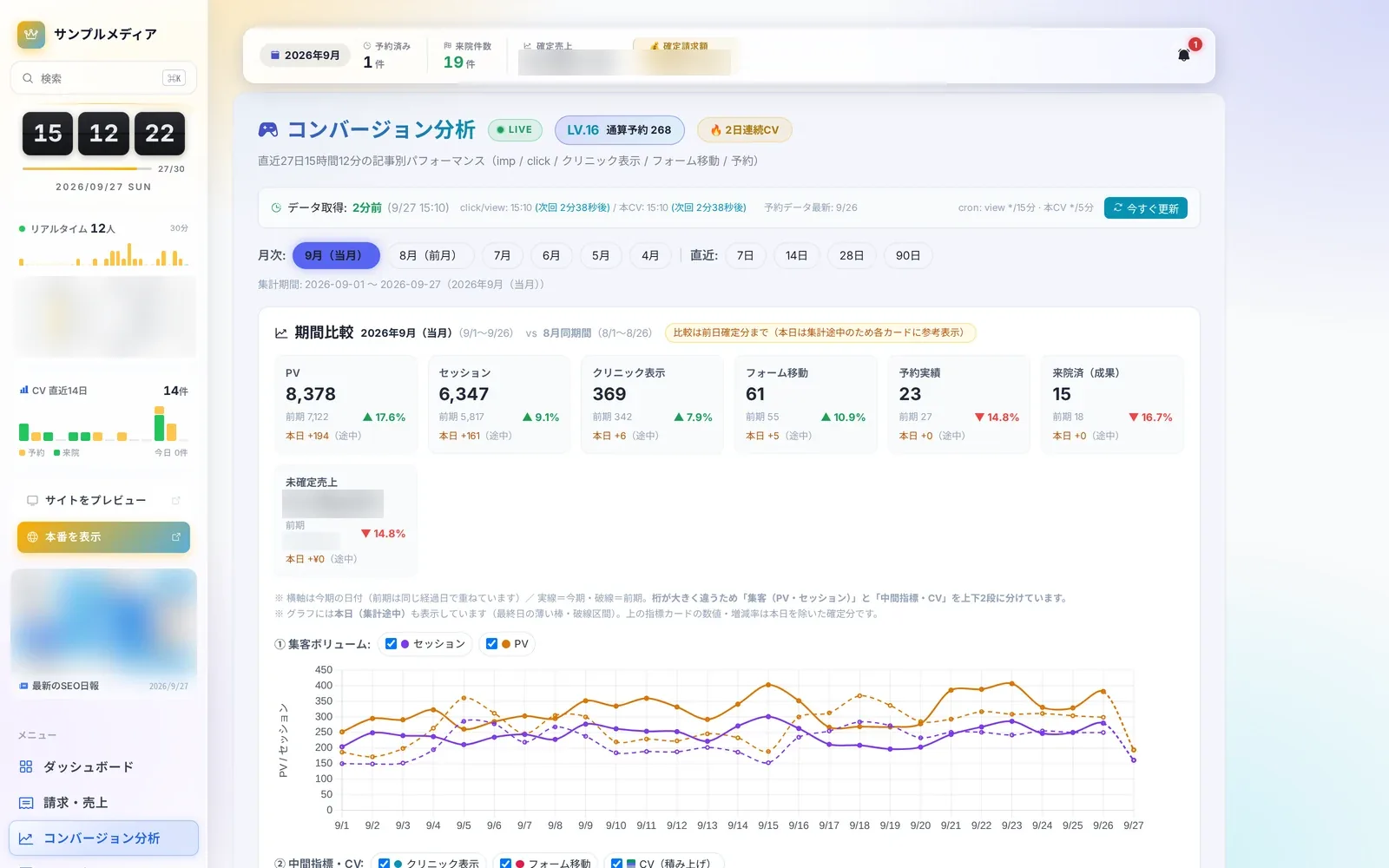 Analytics7 screensConversion analyticsLearn more
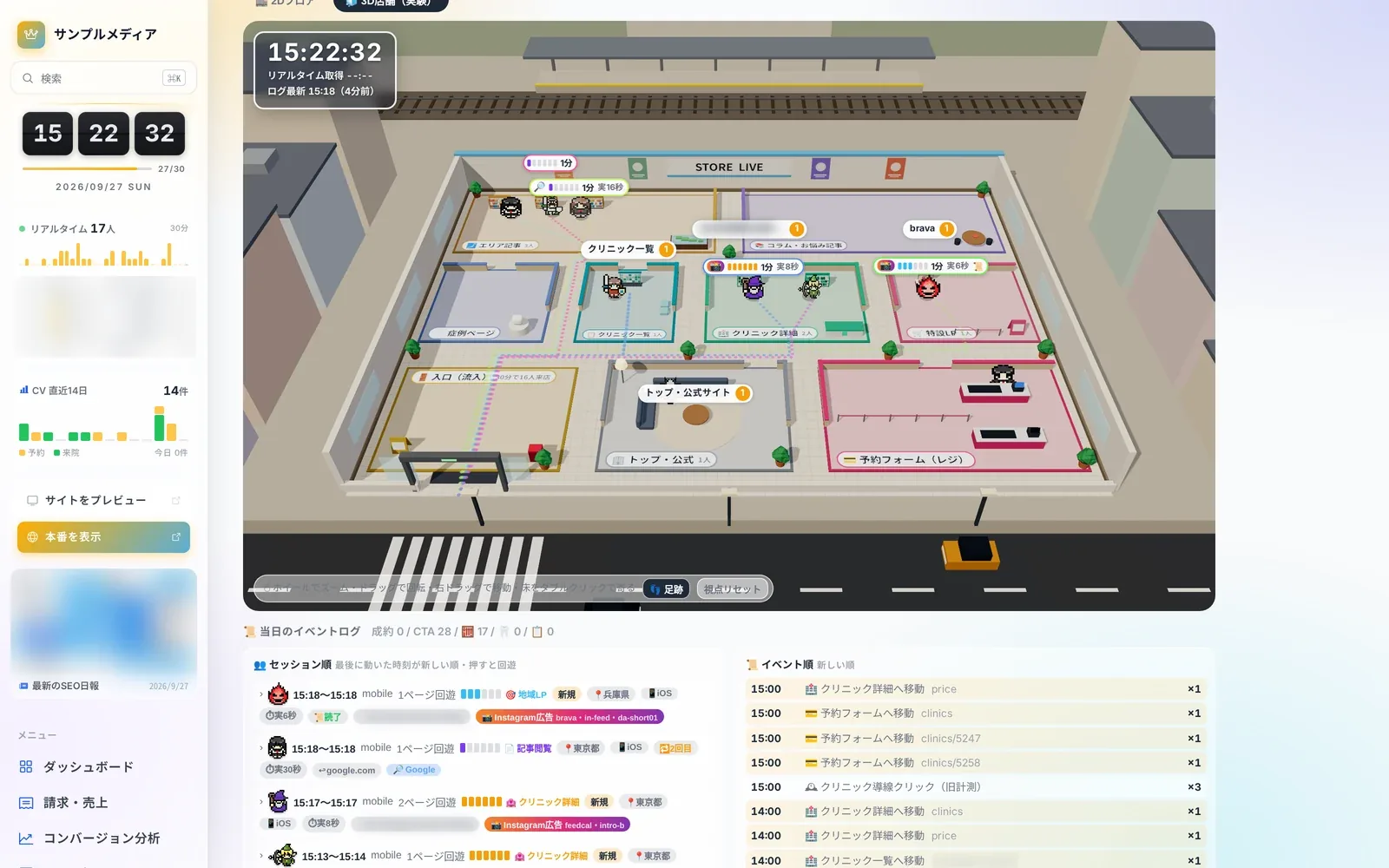 Store Live3 screensStore LiveLearn more
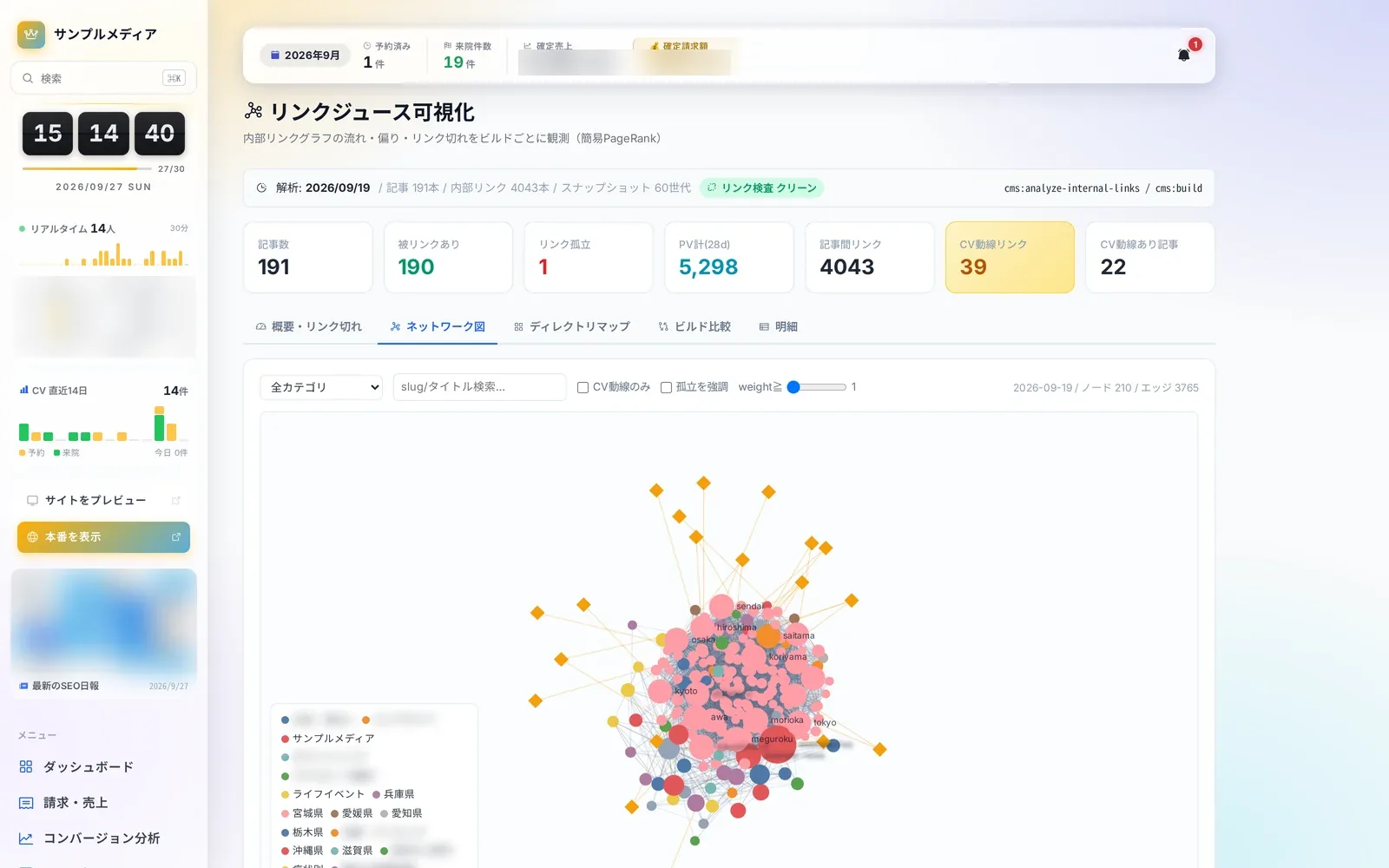 Content Insights8 screensArticle performance and internal linksLearn more
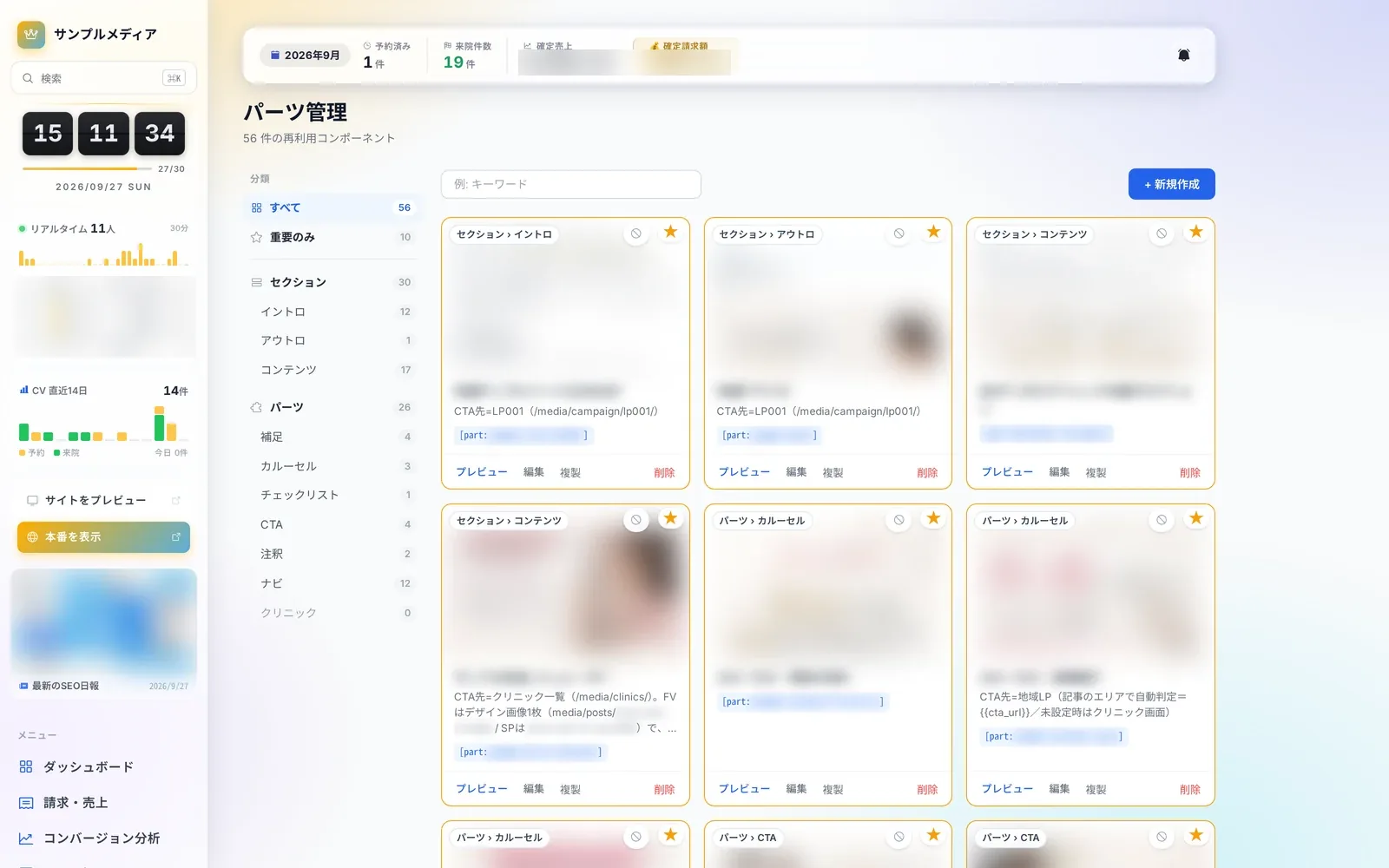 Editor & Assets8 screensArticles and assetsLearn more
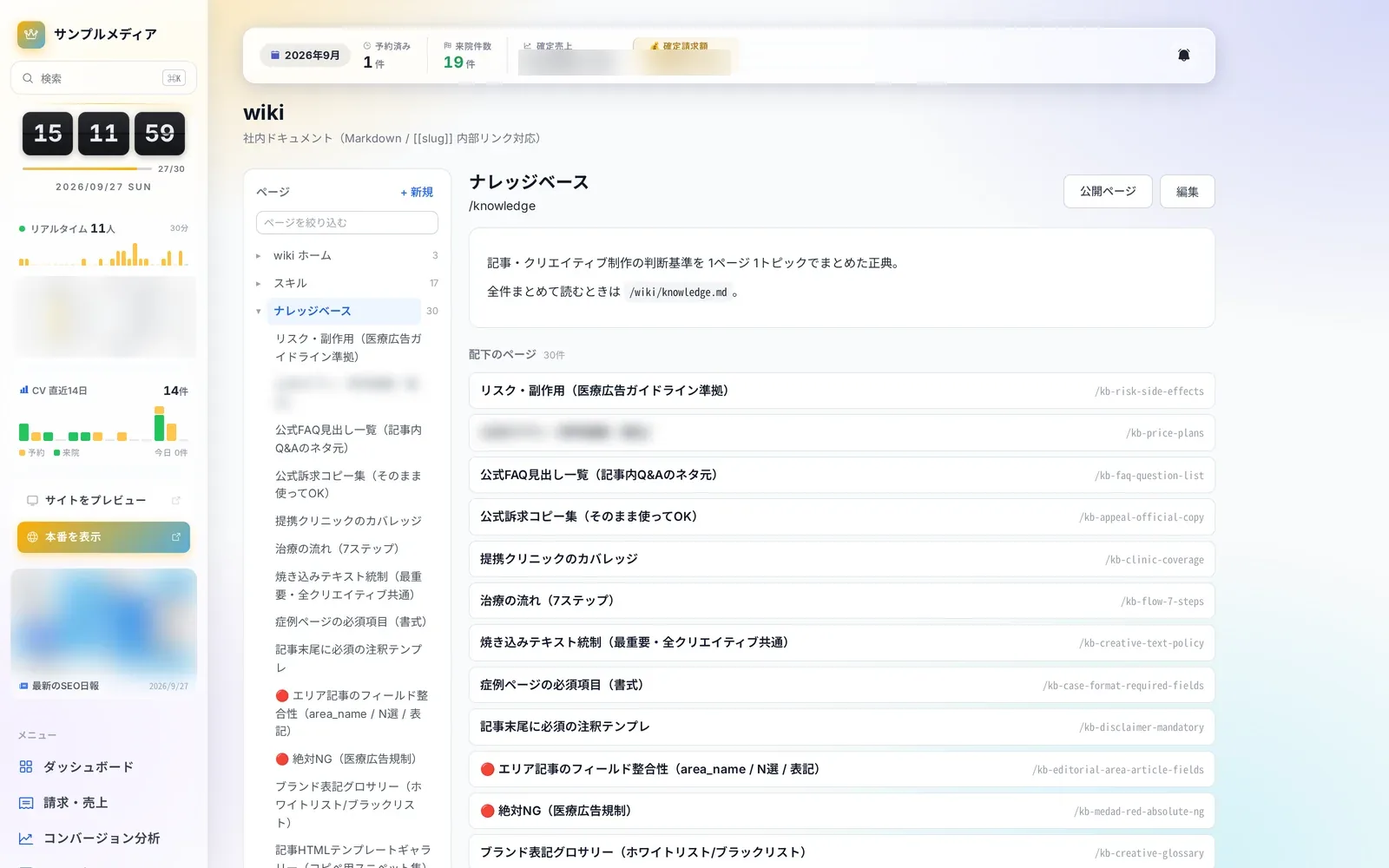 Knowledge4 screensWiki and knowledgeLearn more
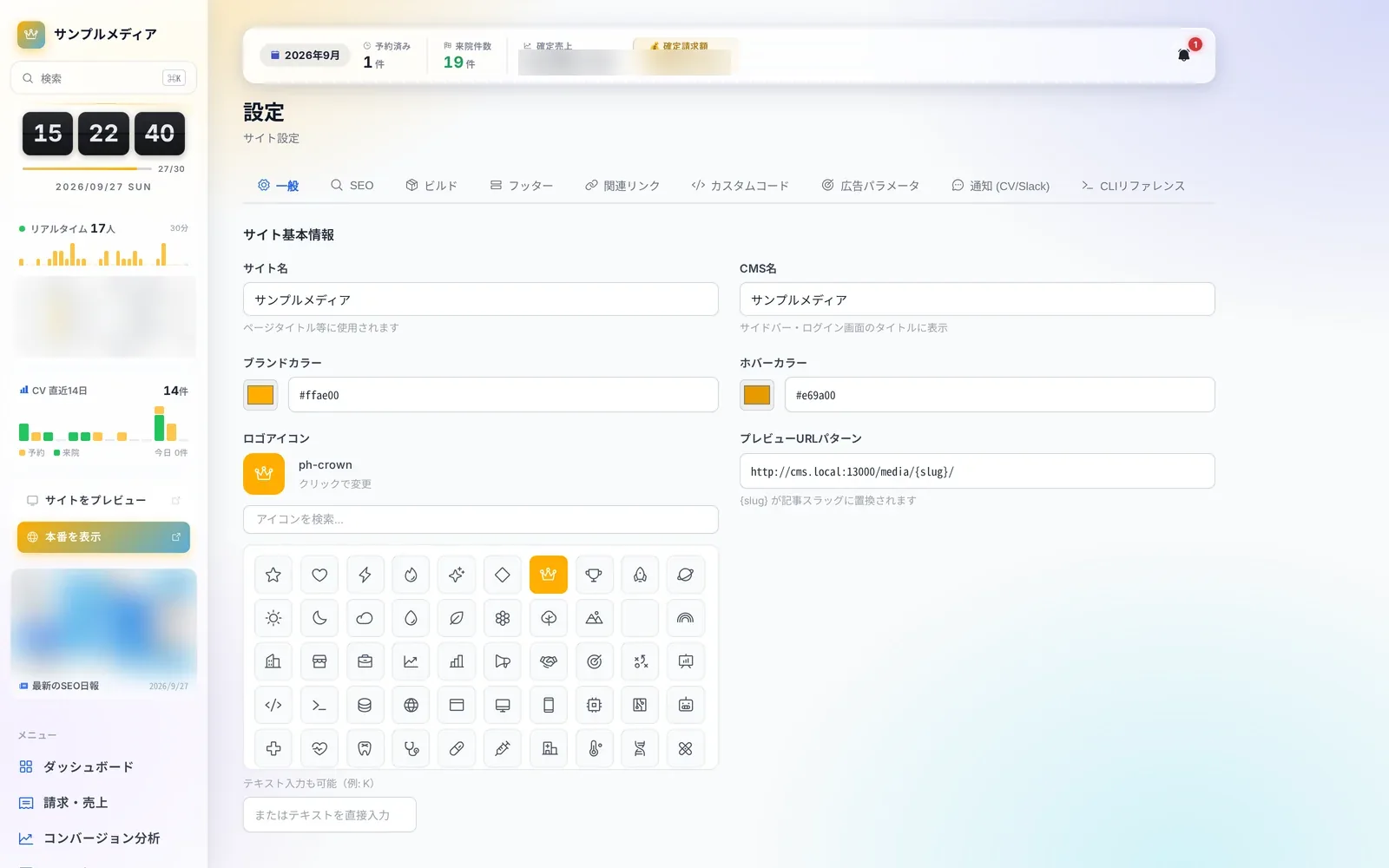 Site Operations10 screensSettings & maintenanceLearn more
Questions about adopting or running Autorial? Talk to us.