Editor & Assets
Articles and assets
Turn intros and CTAs into parts, vary them with variables, and fix them in one place for every article.
Parts that repeat across many articles, such as intros and CTAs, are inserted as parts. A part can hold variables like a region name, so text that differs slightly from article to article is still managed as one part, and editing that part changes every article it's in. This takes custom work with WordPress's reusable blocks but is built into Autorial, alongside the article list and editor and the management of images and creatives, all in the same admin.
Prerequisites
- Google BigQuery (GA4 export)Page views, CTR and referrals shown in the article list and categories
- Gemini API or OpenRouterAI image generation for creatives
Article editing, parts and the media library work without any external service.
Google services (BigQuery, GA4, Search Console) connect together through a single service account with read access, and the connection details are registered in the admin's analytics settings.
01Parts
Make intros and CTAs into parts, and fix every article at once
Text and components that repeat across many articles, such as openings, closings and CTAs, are registered as parts and inserted into articles with a shortcode. An article only holds a call to the part, so editing the part in one place updates every article it's inserted into. Sections that make up a block of an article (intro, outro, content) and parts such as notes, carousels, checklists, CTAs, footnotes and navigation are managed by type.
- Edit a part and every article using it changes
- Insert into articles with [part:slug]
- Sections and parts organized in a type tree
- Preview, edit or duplicate from each card
02Editing a part
Vary one part for each article with variables
There's no need to make a copy of boilerplate text for every article just because the region name or a count differs. Put variables in a part and pass values when inserting it, as in [part:intro area=Yokohama], and the same part shows different wording in each article. Small differences still mean just one part to manage, so rewording it takes one edit.
- Pass values on insert to vary the wording
- Small differences, still just one part to manage
- Insert several parts together as a part group
- Preview with values filled into the variables
03Articles
Find the articles to work on, with the numbers in view
Sort the article list by update date, page views or search CTR, and filter by internal tag or update-date range. Advanced search adds conditions such as status, quadrant, whether an intro or outro is set, category and tag. Each card shows publication status, body length and a key-article marker, so you can gauge an article's state without leaving the list.
- Search the body text as well as titles and slugs
- Group with internal tags, with a count for each tag
- Filter by update date: today, 7 days or 30 days
- Switch between card and table views
04Article editor
From body to CTAs and SEO, in one editor
Body, settings, CTAs, SEO and history each have their own tab, and the body can be edited visually or as HTML. In the history, you can review the diff before and after a rewrite and restore an earlier version. Preview the result before saving, and open a review request right there when an article needs a human check.
- Leave the meta description blank and it is generated from the title
- Review rewrite diffs and restore an earlier version
- Preview the result before saving
- Create a review request from the editor
05Categories
Compare how each category performs, card by card
Categories are managed as pillar pages, and each card shows the last 28 days of page views and referrals with small trend charts. Sort by page views, article count, display order or name to compare growing categories with thin ones. From each card you can go straight to the preview, the editor or the list of its articles.
- 28-day page views, referrals and referral rate with trends
- Pillar article count and micro-conversions on each card
- Sort by page views, article count, display order or name
- Jump from a card to preview, edit or its article list
06Creatives
Move diagram and banner production forward from one list
Creatives used in articles — CTAs, heroes, infographics, charts, checklists, thumbnails and more — are managed by type and can be filtered by production status. Generate images for the selected creatives in bulk with AI. Each creative carries an ID for embedding in articles, which you can copy and use as is.
- Tabs and counts by type show the production volume
- Filter by status and group by type
- Generate images for selected creatives in bulk with AI
- Copy the ID used to embed a creative in an article
07Media library
Just drop in images; they're made ready to serve
Upload by pasting, or drag and drop several files at once. Names, slugs and folders are assigned automatically, and WebP conversion and optimization happen on their own. Each file shows its format, file size and dimensions, and you can copy or edit it right from its card.
- Supports jpg, png, webp, gif and svg (up to 20 MB)
- Find files by folder and file name
- Format, file size and dimensions shown on each card
- Copy, edit or delete from the card
08Illustrations
Drop external illustrations into articles right away
Search an external illustration catalog by keyword and copy the URL or HTML to paste into an article. A note on the material's terms of use appears above the list, so you can check the conditions as you choose.
- Search the catalog by keyword
- Copy URL and Copy HTML buttons for every item
- A terms-of-use note shown above the list
* Screens use sample data, with some details such as article titles and keywords blurred. The admin is shown in Japanese. Click to enlarge.
Explore other features
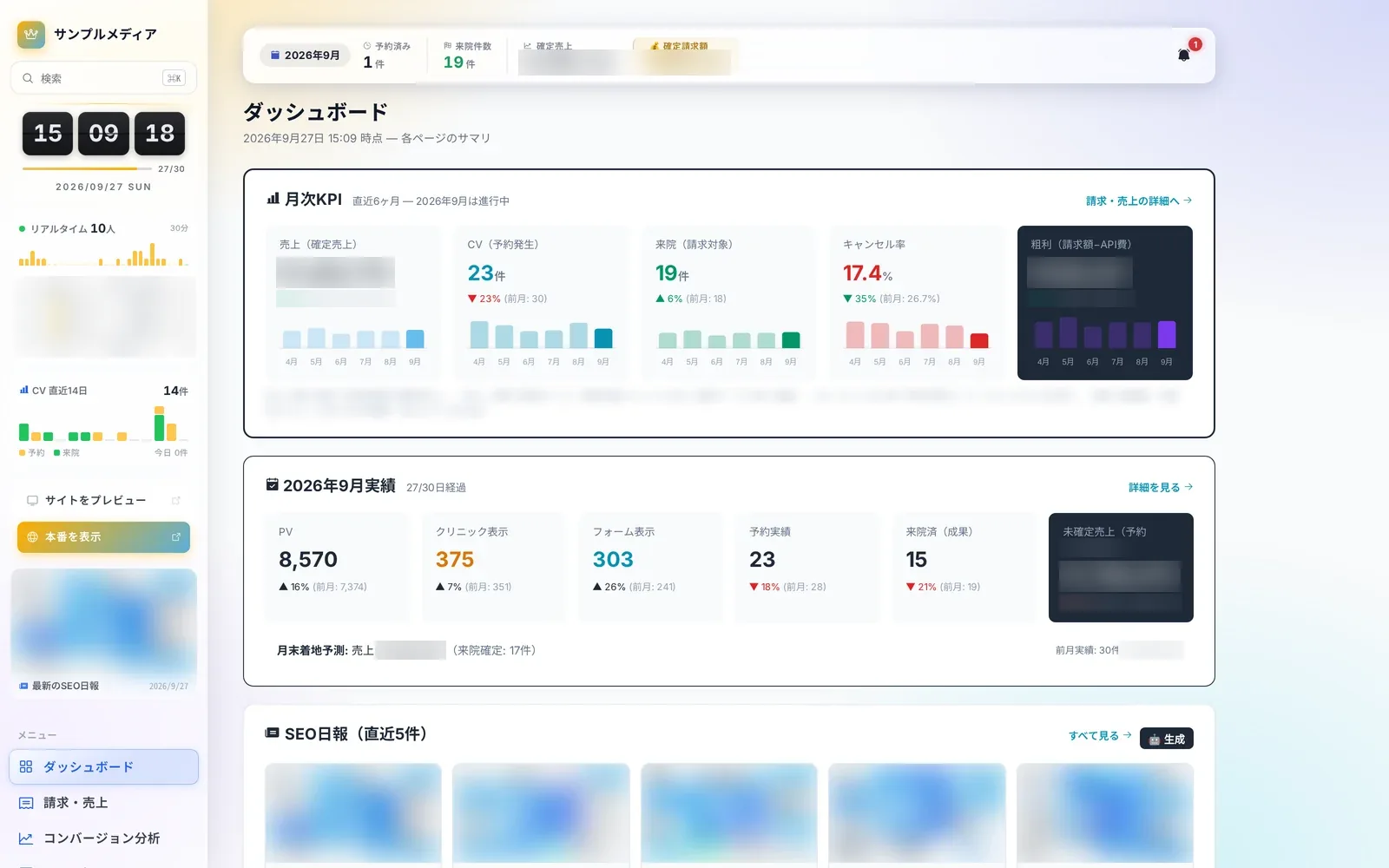 Operations8 screensDaily operationsLearn more
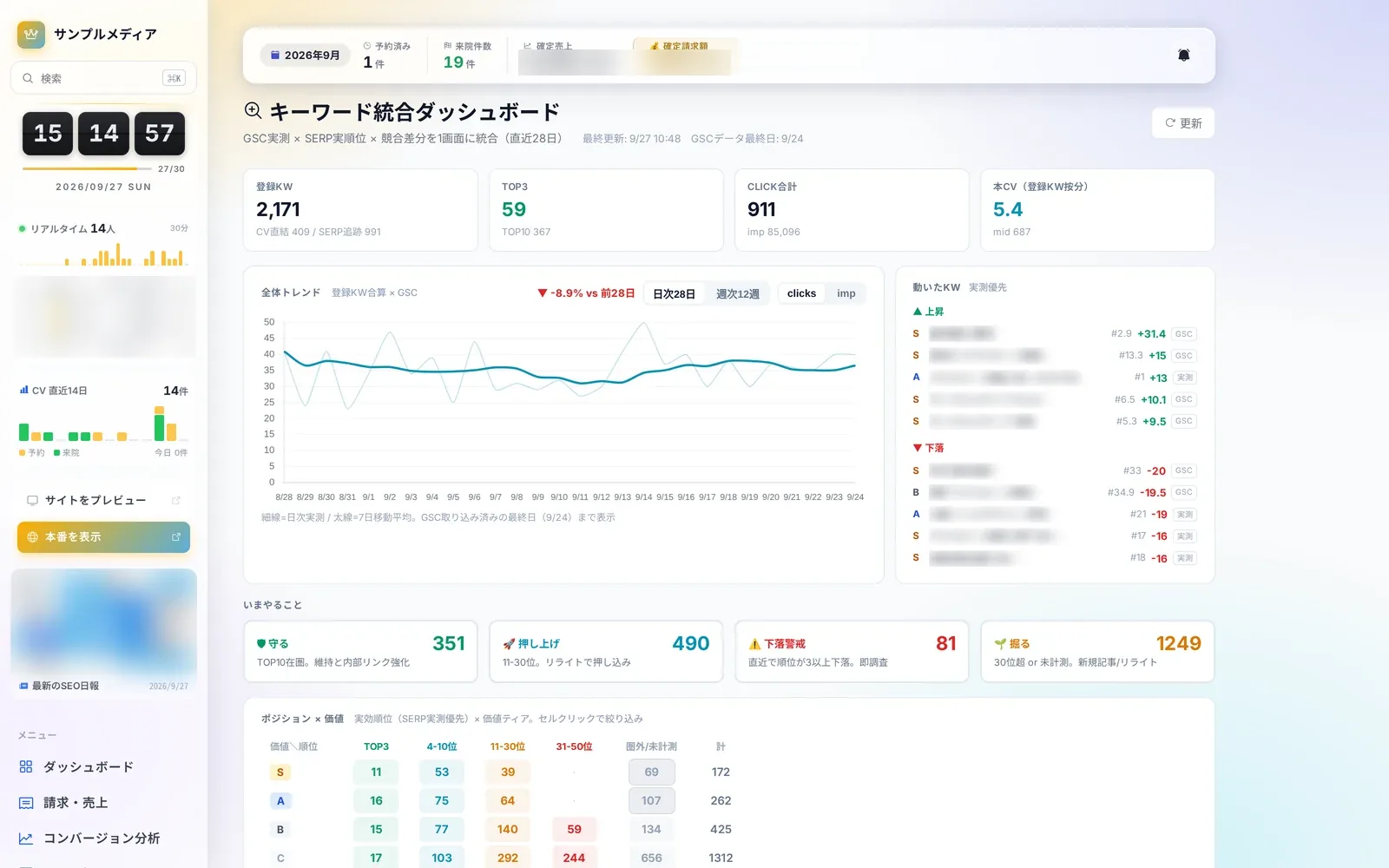 SEO4 screensSEO and search rankingsLearn more
 AI Visibility4 screensAI visibilityLearn more
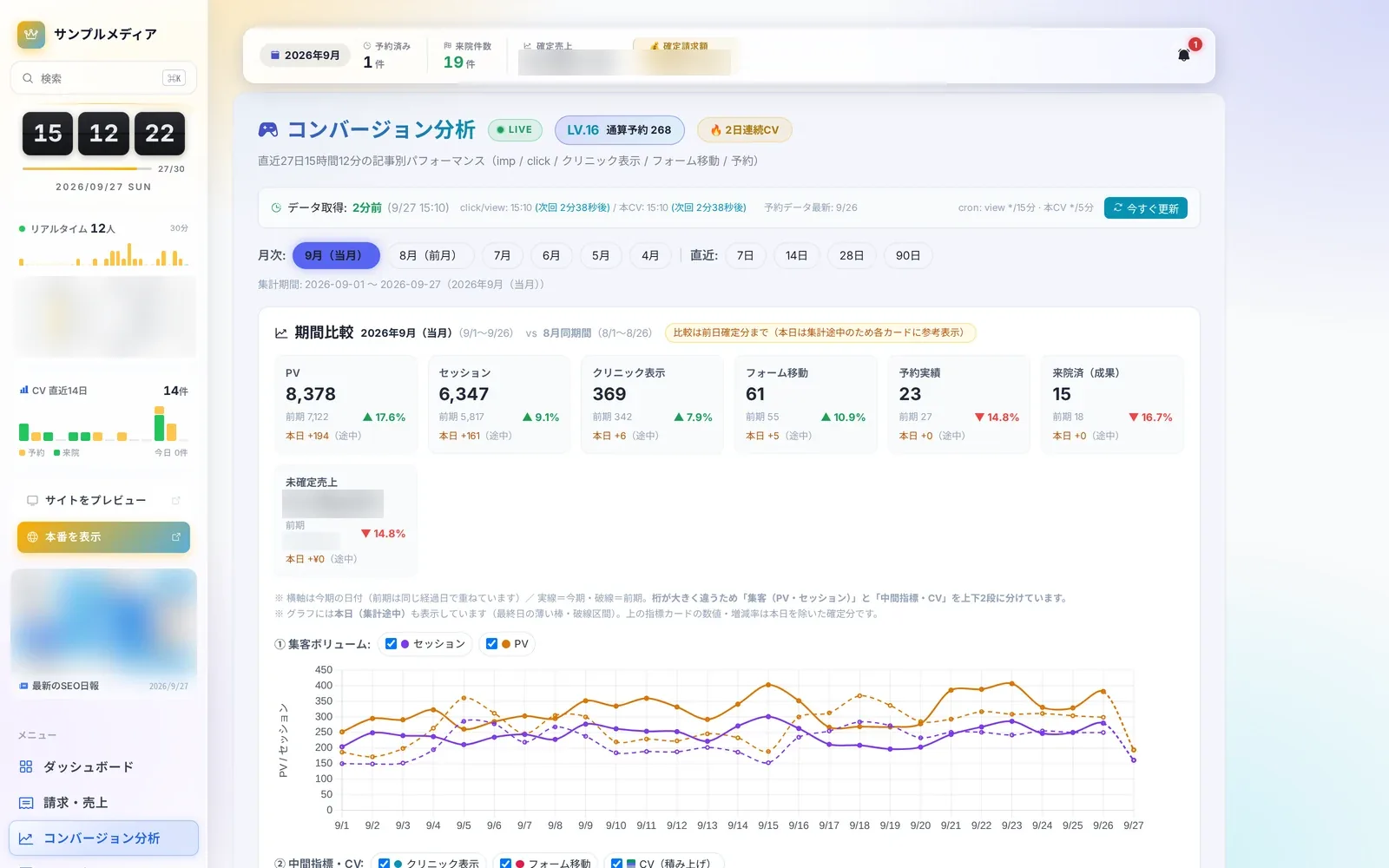 Analytics7 screensConversion analyticsLearn more
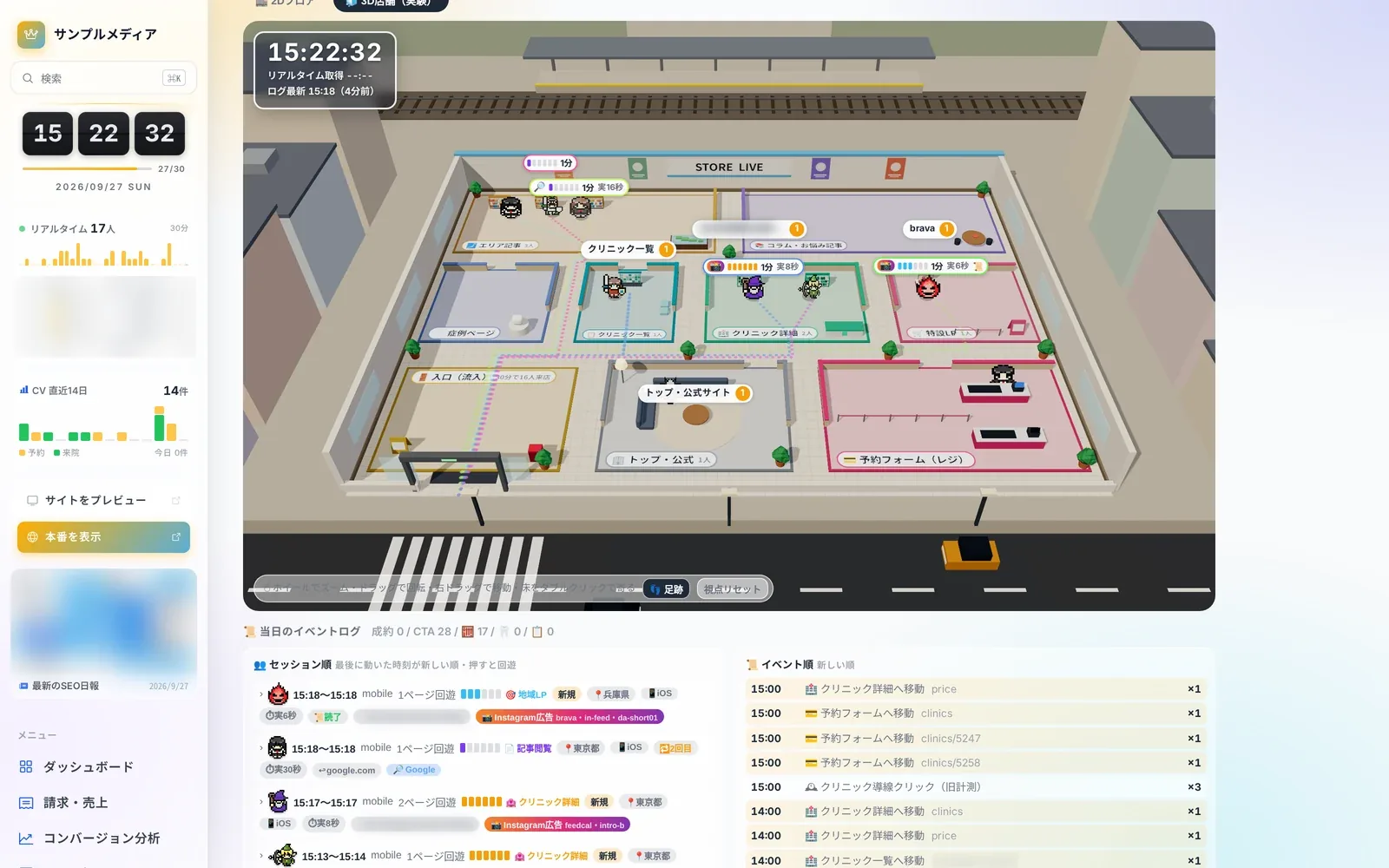 Store Live3 screensStore LiveLearn more
 Content Insights8 screensArticle performance and internal linksLearn more
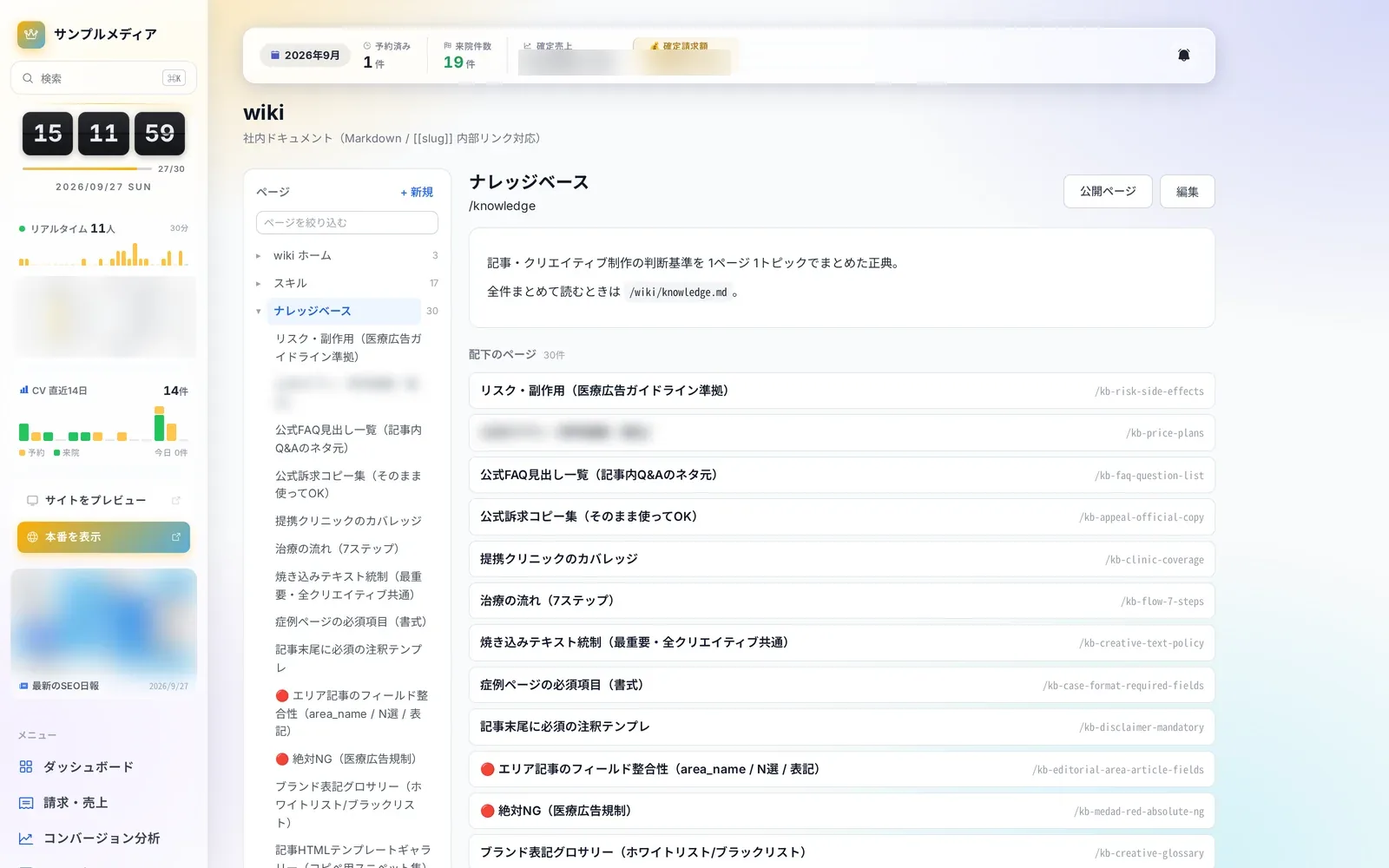 Knowledge4 screensWiki and knowledgeLearn more
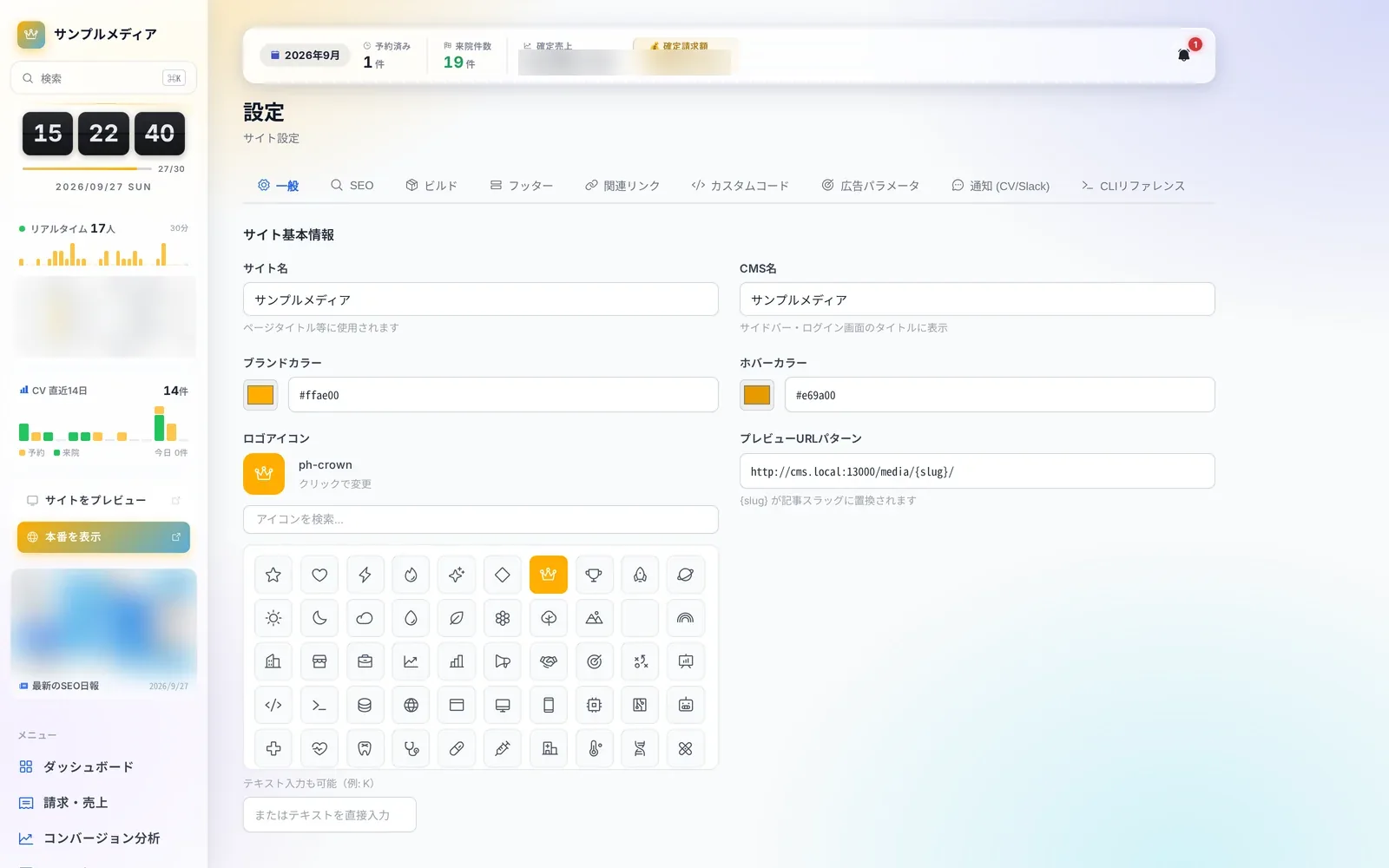 Site Operations10 screensSettings & maintenanceLearn more
Questions about adopting or running Autorial? Talk to us.